📢 Disclosure: Some links on this page are affiliate links. As an Amazon Associate, I earn from qualifying purchases at no extra cost to you. Thanks for your support.
The Asus ROG Ally has quickly built a reputation as one of the most powerful handheld gaming PCs available today. I’ve covered the Ally in a few articles on our site, and each time it’s impressed me with how much performance it can squeeze into such a compact form factor. This time, though, I wanted to push it properly.
In this article, we test running BeamNG Drive on the original Asus ROG Ally (not the Ally X) to see exactly how it performs across every available graphics preset. BeamNG is an iconic driving and physics-based game, and it’s known for being demanding on hardware, especially at higher visual settings. The goal here was simple: find out how far the ROG Ally can really go, and whether it can handle ultra-high quality graphics.
The results were pretty surprising!
Test System Overview
Before diving into the gameplay results, it’s worth covering the hardware being used. This is the original Asus ROG Ally, powered by the AMD Ryzen Z1 processor, paired with 16GB of RAM. The display is one of the Ally’s standout features, offering a 120Hz refresh rate, up to 500 nits of brightness, and 100% sRGB color gamut coverage.
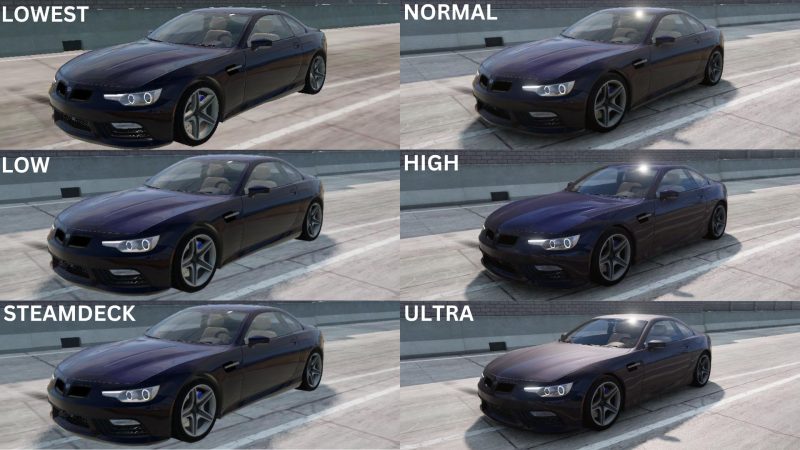
BeamNG Drive provides six graphics presets, ranging from the lowest possible quality to ultra-high. Each one was tested in real gameplay scenarios to see how the Ally handled both visuals and performance.
Lowest Graphics Setting
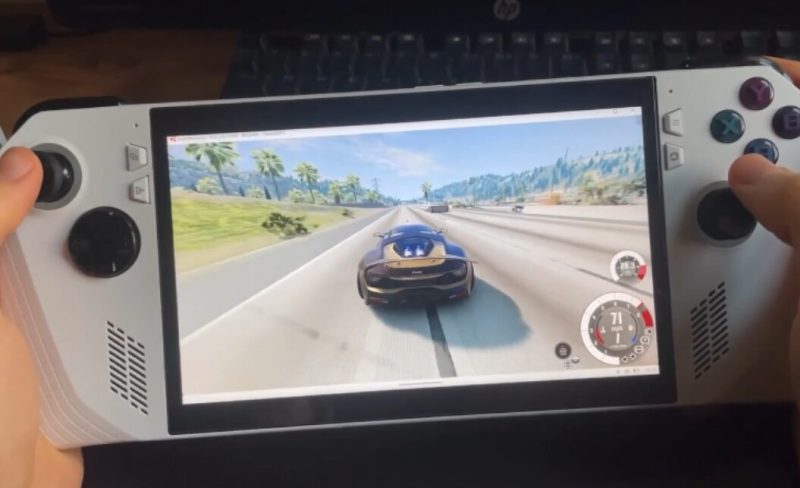
Starting at the very bottom, the game was first launched using the lowest graphics preset. One thing I didn’t expect here was the prolonged loading time. Switching to this setting seemed hit or miss, sometimes loading quickly, other times taking noticeably longer to load game content.
Once in-game, however, performance was solid. The frame rate was smooth, and gameplay felt responsive. Visually, though, the game looked extremely basic. The environments felt boxy, textures were flat, and overall, it resembled a much older title.
That said, the Ally’s bright display helped more than expected. Even on the lowest settings, the 500-nit screen brightness made everything easy to see, and gameplay remained enjoyable purely from a performance standpoint.
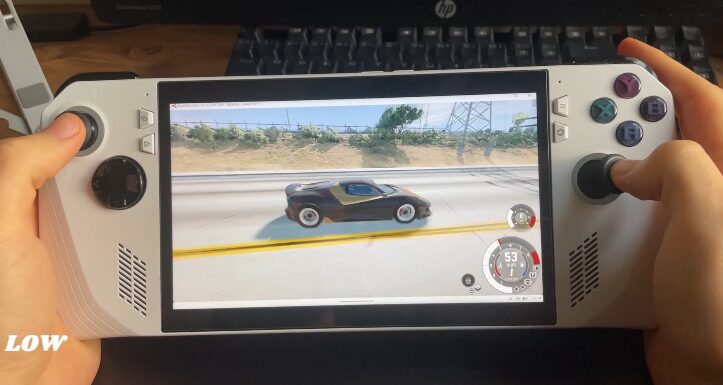
Low Graphics Setting
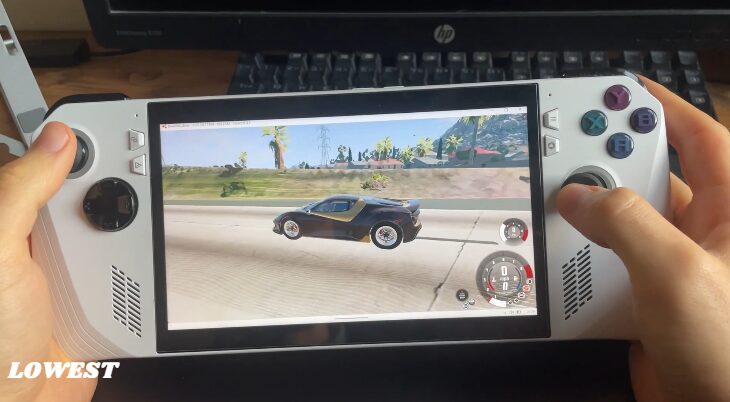
Moving up to the low graphics setting, expectations were fairly modest still, and rightly so. The visual upgrade wasn’t dramatic, but it was noticeable. The world appeared less boxy, shadows started to show up, and overall depth improved slightly.
The ROG Ally had absolutely no trouble here. Performance remained smooth, with no lag or stuttering. While the visuals were still far from impressive, the Ally’s excellent color reproduction helped elevate the experience. Thanks to the display’s full sRGB coverage, colors looked vibrant and accurate, making the game more pleasant to look at than the raw graphics quality would suggest.
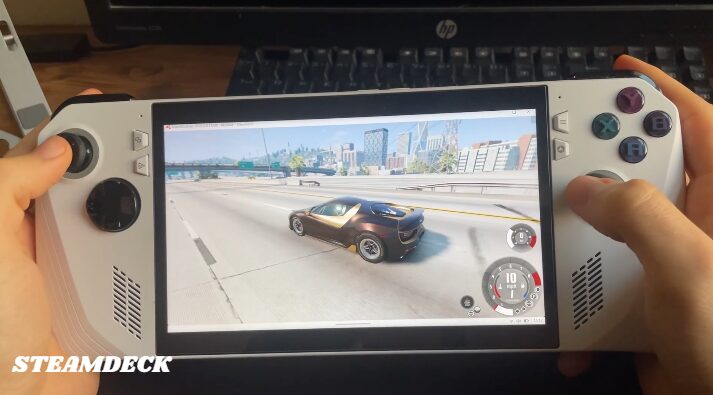
Steam Deck Preset
Next up was the Steam Deck graphics preset, and this is where things started to get interesting. One thing I noticed at this point is that changing graphics settings can sometimes cause the game to freeze, leaving you waiting for up to 30 seconds. It’s unclear whether this is a BeamNG issue or something specific to handheld systems, but it’s worth mentioning.
Visually, this preset was a big improvement. Shadows looked more natural, sunlight reflections were much better, and motion blur added a sense of realism that was missing from the lower settings. The scenery looked noticeably better while driving, and the game felt far more immersive.
Since this preset is optimized for the Steam Deck, and the ROG Ally is the more powerful device, it wasn’t surprising that performance here was excellent. Gameplay felt smooth, responsive, and very playable at this quality level.
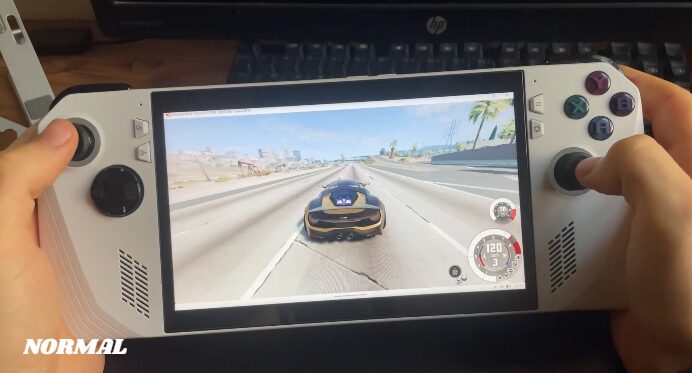
Normal Graphics Setting
Switching to the normal graphics setting revealed just how capable the ROG Ally actually is. This is where the visual quality really begins to stand out.
Color depth became more noticeable, vehicle models showed much more detail, and distant scenery was clearer and more defined. Motion blur also appeared more refined, adding to the overall realism while driving.
Despite the visual jump, performance remained smooth. The Ally handled this setting confidently, showing no major drops or stutters during gameplay. The difference between the Steam Deck preset and the normal setting was very clear, and both felt playable, but normal was a definite upgrade in visual fidelity.
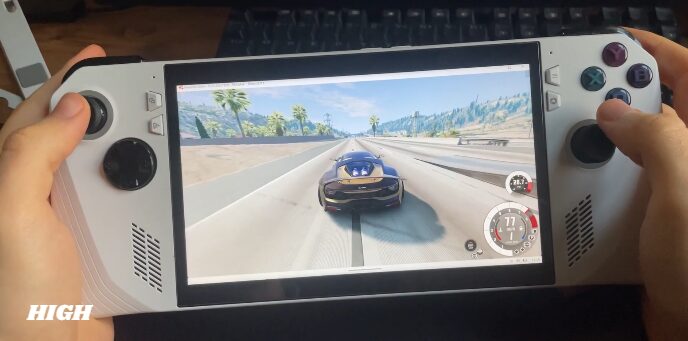
High Graphics Setting
With confidence growing, it was time to push the Ally further by switching to the high graphics setting. After a short wait during the transition, the difference was immediately noticeable.
Textures were significantly sharper. You could see more detail in the tires, the car body, and the road surface. Lighting and reflections were much more defined, and overall, the game looked genuinely impressive on a handheld device.
However, this is where performance started to take a hit. While the game was still playable, frame drops became noticeable, especially compared to the previous setting. The Ally’s fans ramped up quickly, and it was clear the system was working hard.
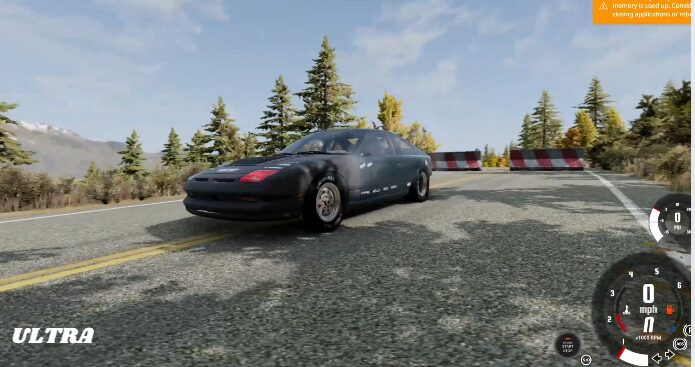
A warning message appeared in the top-right corner, suggesting the device was under heavy load. While gameplay didn’t come to a stop, it raised concerns about how well the Ally would handle long sessions at this setting.
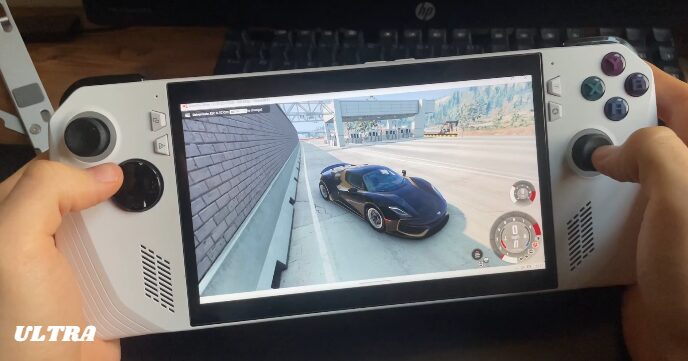
Ultra-High Graphics Setting: Can It Run It? Yes. Should You? Maybe Not.
Finally, it was time to answer the big question: Can the Asus ROG Ally run BeamNG Drive at ultra-high settings?
After a short loading period, the game launched, and visually, it looked great. Colors appeared richer, details were crisp, and the overall presentation was undeniably high quality. That said, compared to the high preset, the visual upgrade wasn’t as dramatic as expected.
Performance, on the other hand, was a different story. Lag was much more noticeable, frame pacing suffered, and the Ally’s fans were working at full speed. Temperatures were clearly climbing, and while the game technically ran, it didn’t feel sustainable for extended gameplay.
The live gameplay view made the lag especially obvious. While impressive from a technical standpoint, ultra-high settings simply push the Ally too far for a smooth experience.
Which settings are best?
Overall, it’s genuinely impressive that the Asus ROG Ally can run BeamNG Drive across all graphics presets. Even high and ultra settings are technically possible, which speaks volumes about the device’s power.
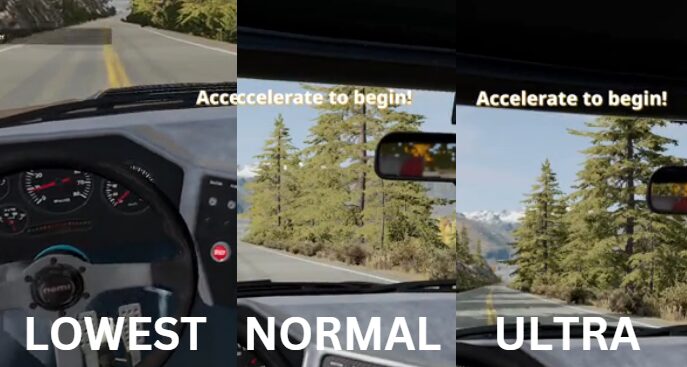
That said, normal to high settings offer the best experience:
- Normal provides a huge visual upgrade with smooth, stable performance
- High looks excellent, but may not be ideal for long play sessions
- Ultra-high works, but with noticeable lag and thermal strain, so we wouldn’t recommend this.
Below the Steam Deck preset, visual quality drops off significantly, while anything above normal starts to push the hardware harder than necessary.
The normal setting, in particular, feels like the sweet spot; it offers a big jump in quality without sacrificing performance.
If you enjoyed this breakdown and want to see more tech reviews and performance tests, be sure to follow us for more. Thanks for reading. See our video review below or keep reading to see how the Rog Ally handles Canva video editing.
Editing Videos With Canva on the Asus ROG Ally: Is a Handheld PC Actually Worth It?
Most of the Handheld PC’s are designed with gaming in mind, but a big question remains: can they handle everyday creative tasks? In this section, we test to see how well the Asus Rog Ally can handle a task like video editing.
To find out, we decided to give Canva video editing a proper test on the Asus ROG Ally. The idea was simple: see whether this compact handheld could replace, or at least complement, a traditional laptop for lightweight editing tasks.
Why We Wanted to Try Canva on the ROG Ally
The main reason for trying this setup came down to portability. I already own a laptop that handles video editing extremely well, but it’s heavy and keeps me tied to a desk. We wanted something smaller and more flexible, something to use anywhere without feeling locked into a workspace.
Since Canva is web-based and relatively lightweight compared to full professional editing software, it felt like the perfect candidate for testing on the ROG Ally. We was really hoping this would be a viable portable editing solution.
First Impressions: Setup, Recording, and Performance
One of the first things we noticed, and really liked, was how easy it is to record the screen on the Asus ROG Ally. By simply pressing the back key and Y, you can start recording instantly. This made capturing in-app footage and quick clips incredibly convenient, especially for social or YouTube content.
Load times were another pleasant surprise. Canva opened quickly, and navigating between pages felt responsive. We didn’t experience any major delays or stutters while working in the editor.
Visually, the Ally performs very well. The screen quality is excellent, with sharp image clarity and impressive color depth. This made reviewing clips and images a genuinely enjoyable experience. Using Windows 11 alongside Armoury Crate (Rock Ally) was also a big plus. File access and organization felt familiar and intuitive, making it easy to manage assets.
Touchscreen Use
The Asus ROG Ally features a 7-inch touchscreen, and while it’s small, touch input is absolutely essential when using Canva. Relying solely on the gamepad just isn’t practical for editing tasks.
Touch controls made basic navigation possible, dragging clips, tapping menus, and scrubbing through timelines. But the limited screen size meant everything felt very tight and crowded. There’s only so much room to work with when you’re dealing with timelines, overlays, and menus on such a small display.
Where the Experience Starts to Fall Apart
As usable as Canva is at first glance, the cracks start to show once you try to do more detailed work.
One of the biggest issues is that Canva’s web version simply isn’t optimized for handheld PCs like the ROG Ally at the moment. It’s clearly designed for a traditional mouse-and-keyboard setup. The lack of a physical keyboard made things especially difficult.
Using the gamepad for precision work, such as trimming clips, placing overlays, or adjusting elements, was frustrating. There’s a steep learning curve, and even once you get used to it, keyboard shortcuts are basically unusable. This makes workflows slower and more tedious than they should be.
Eventually, we hit a wall. More intricate editing tasks, particularly cutting footage accurately and layering overlays, became too difficult to do efficiently. In the end, we had to switch back to using a laptop to finish those parts of the video.
Time vs Convenience: Is It Worth It?
Even though the Asus ROG Ally is portable, compact, and fast, editing a full video on it took roughly twice as long compared to using a laptop. While it’s impressive that the task can be completed at all, the extra time and effort make it hard to justify as a regular workflow.
One thing that helped significantly was using a portable touchscreen monitor. I’ve already covered this monitor in another article, and it pairs really well with the ROG Ally. The fact that it has its own battery keeps the setup portable, while the larger touchscreen makes editing much more manageable.
Alternatives That Make More Sense
After spending time with this setup, it’s hard not to feel that a tablet might be the better option for Canva editing if you want something portable. Many apps are far better optimized for touch-first workflows on tablets, making the experience smoother and more intuitive.
Another option is docking the Asus ROG Ally. With a dock, you can connect a keyboard and mouse and essentially turn it into a small desktop PC. In that setup, Canva becomes far more usable, but at that rate, you lose much of the handheld appeal.
Overall, Would We Recommend Canva on the ROG Ally?
While we did manage to edit and complete a video using the Asus ROG Ally, we can’t honestly say we’d recommend it for Canva-based video editing. The experience works, but it’s far from ideal, and we can’t imagine using this setup again for future videos.
That said, the final result still turned out well, which speaks to the raw capability of the device. If you’re curious to see more, you can watch our video review below.
Thanks for reading. Make sure to check out our similar articles below.

Combining a BSc in Computing and Business with a passion for digital productivity, Eamon A. has spent the last three years reviewing the latest tech innovations. From high-performance laptops to essential home office accessories, his in-depth comparisons focus on design and functionality, ensuring readers find the perfect tools for their setup.